
Can you recover deleted files? Yes, you can. Disk Drill is a powerful data recovery software designed to help you recover deleted files and restore lost data from various storage devices. This guide will walk you through how to use Disk Drill effectively, covering everything from simple file recovery to more complex scenarios like formatted drive recovery and RAID data recovery.
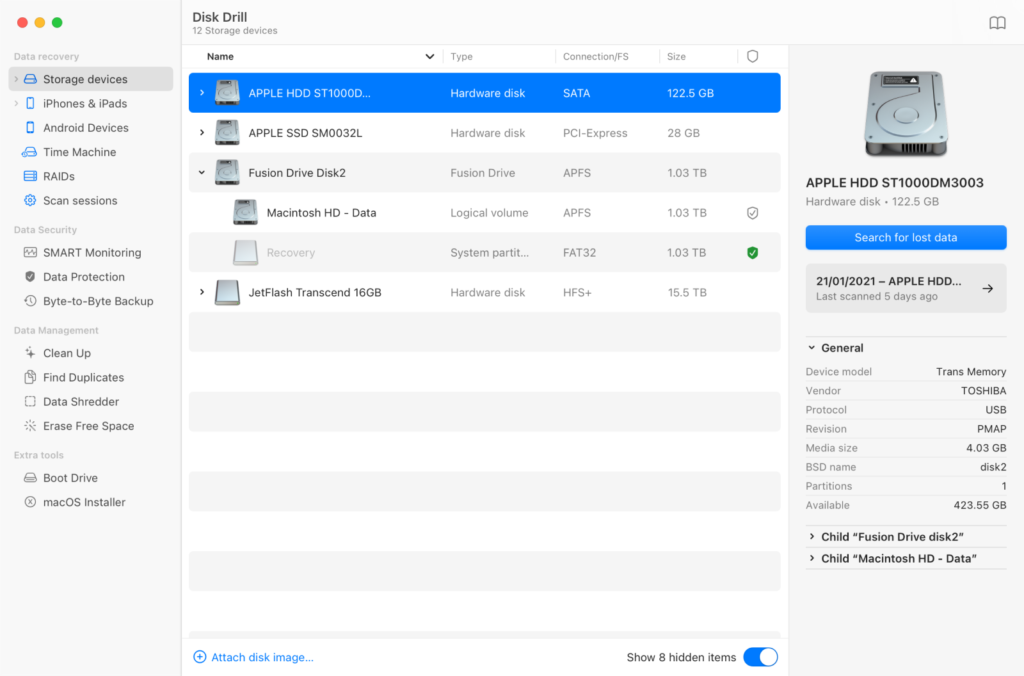
Image Source: www.disk-drill.com
Getting Started with Disk Drill
Disk Drill is a user-friendly yet robust tool for file recovery. Whether you’ve accidentally deleted an important document, a precious photo, or an entire partition, Disk Drill can often help you retrieve it. This software is compatible with Windows and macOS, making it accessible to a wide range of users.
What is Disk Drill?
Disk Drill is a comprehensive data recovery solution. It scans your storage devices for remnants of deleted files and lost partitions, allowing you to preview and recover them. Its intuitive interface makes it easy for beginners, while its advanced features cater to experienced users needing to perform intricate data recovery tasks.
Downloading and Installing Disk Drill
- Visit the Official Disk Drill Website: Go to the CleverFiles website (the developer of Disk Drill).
- Choose Your Version: Select the correct version for your operating system (Windows or macOS).
- Download: Click the download button.
- Install: Run the installer file and follow the on-screen prompts. It’s recommended to install Disk Drill on a drive different from the one you want to recover data from to avoid overwriting the very files you’re trying to save.
Key Features of Disk Drill
- Wide Range of File Systems Supported: Disk Drill can recover data from NTFS, FAT32, exFAT, HFS+, APFS, EXT2/3/4, and many more.
- Multiple Recovery Methods: It offers several scanning methods, including Quick Scan and Deep Scan, to find different types of lost data.
- Preview Functionality: Before recovering, you can preview most files to ensure they are the ones you need.
- Various Device Support: Disk Drill works with internal hard drives, SSDs, external hard drives, USB flash drives, memory cards, digital cameras, and even smartphones (via specialized features).
- RAID Data Recovery: It can reconstruct and recover data from RAID arrays.
- Partition Recovery: Disk Drill can locate and restore data from lost or deleted partitions.
- Data Protection: Features like Recovery Vault help protect your files from accidental deletion in the future.
Your First File Recovery with Disk Drill
This section will guide you through a typical file recovery scenario, such as recovering deleted files from your computer’s internal hard drive.
Selecting a Drive to Scan
Once Disk Drill is installed, launch the application. You will see a list of all connected storage devices.
- Identify Your Drive: Look for the drive where your files were previously located. This could be your C: drive (Windows) or Macintosh HD (macOS), or an external drive.
- Choose the Drive: Click on the drive you want to scan.
Performing a Scan
Disk Drill offers two main scanning methods:
Quick Scan
- When to Use: This is ideal for recently deleted files that haven’t been overwritten yet. It’s fast and efficient.
- How to Initiate:
- With your chosen drive selected, click the “Search for lost data” button.
- Disk Drill will start a Quick Scan.
Deep Scan
- When to Use: This is a more thorough scan and is recommended if Quick Scan doesn’t find your files or if the files were deleted a long time ago, the drive was formatted, or the file system is corrupted. Deep Scan takes longer but can find a wider variety of file types.
- How to Initiate:
- After a Quick Scan (or if you choose to skip it), you’ll often see an option to perform a Deep Scan. Look for a button like “Deep Scan” or “All recovery methods.”
- Clicking this will initiate a more intensive search. Deep Scan often allows you to filter by file type, which can speed up the process of finding specific items.
Reviewing Scan Results
After the scan is complete, Disk Drill will display a list of recoverable files.
- Navigating Results:
- The results are usually organized by file type or folder structure.
- You can use the search bar to find specific files by name.
- Use the “Type” and “Status” filters to narrow down your search. “Status” often indicates how intact the file is (e.g., Excellent, Average, Poor).
- Previewing Files:
- Locate the file you want to recover.
- Click on it. Disk Drill often provides a preview window, especially for common file types like images, documents, and videos. This is crucial to confirm the file is not corrupted.
Recovering Your Files
Once you’ve identified the files you wish to restore:
- Select Files: Check the boxes next to the files you want to recover.
- Choose a Destination: Click the “Recover” button. Disk Drill will prompt you to select a location to save the recovered files.
- Important: NEVER save recovered files back to the same drive you are recovering from. This can overwrite other deleted data, making it permanently unrecoverable. Choose a different partition, an external drive, or a USB flash drive.
- Start Recovery: Click “OK” or “Recover” to begin the file restoration process.
Advanced Data Recovery Scenarios with Disk Drill
Disk Drill excels not only in simple deletion cases but also in more complex situations.
Recovering from a Formatted Drive
When a drive is formatted, the file system is rewritten, and data pointers are erased. However, the actual data often remains until it’s overwritten. Disk Drill’s Deep Scan is particularly effective for formatted drive recovery.
- Procedure:
- Select the formatted drive.
- Perform a Deep Scan.
- Be patient, as Deep Scans on formatted drives can take a considerable amount of time.
- Filter results by file type, as the original folder structure may be lost.
Memory Card Recovery
Memory cards (SD cards, microSD cards, etc.) used in cameras, phones, or other devices are common sources of data loss.
- Connection: Connect the memory card to your computer using a card reader.
- Scanning: Treat the memory card like any other drive within Disk Drill and initiate a scan. This is a prime use case for both Quick and Deep Scans.
External Drive Recovery
Whether it’s a USB drive, an external HDD, or an SSD, Disk Drill can scan these devices as well.
- Connection: Ensure the external drive is properly connected to your computer.
- Scanning: Select the external drive in Disk Drill and proceed with the scanning methods. Common issues include accidental deletion, corruption, or drive disconnection during use.
Partition Recovery
If you’ve accidentally deleted a partition or if a partition has become hidden or inaccessible, Disk Drill can help.
- Procedure:
- Select the disk that contained the lost partition.
- Choose the “Partition Recovery” option if available, or rely on Deep Scan.
- Disk Drill will search for lost partition tables and data remnants.
- You can then select the found partition and scan it for files.
RAID Data Recovery
Disk Drill offers robust RAID data recovery capabilities. This is a more technical process, often requiring the reconstruction of the RAID array.
- How it Works:
- Disk Drill can often automatically detect RAID parameters or allow manual input of these parameters (e.g., RAID level, disk order, stripe size).
- It then virtually reconstructs the RAID array.
- Once reconstructed, you can scan the virtual RAID drive for your lost files.
- Important Considerations: Successful RAID data recovery often depends on the type of RAID failure and the integrity of the individual disks within the array. It’s crucial to follow Disk Drill’s specific guidance for RAID recovery.
Disk Drill’s Additional Features
Beyond core recovery, Disk Drill provides features to enhance data management and protection.
Recovery Vault
- Purpose: This feature acts as a safeguard against accidental file deletion. When enabled, it keeps a record of deleted files, making their recovery almost instantaneous and lossless.
- Enabling Recovery Vault:
- Go to Disk Drill’s Preferences.
- Find the “Recovery Vault” section.
- Enable it for the drives you want to protect.
Data Protection
- Disk Drill’s interface often highlights best practices for data safety, such as avoiding saving recovered files to the source drive.
File System Repair
While primarily a recovery tool, Disk Drill sometimes offers basic file system repair utilities that can help make a drive accessible again.
Tips for Successful Data Recovery
- Act Quickly: The sooner you attempt recovery after data loss, the higher the chances of success.
- Stop Using the Drive: Immediately stop writing any new data to the affected drive. This prevents overwriting deleted files.
- Use a Separate Drive: Always save recovered files to a different storage device.
- Be Patient: Deep Scans can take hours, especially on large drives.
- Preview Files: Always preview files before recovery to ensure they are intact.
- Choose the Right Scan: Start with Quick Scan for recent deletions. Use Deep Scan for more severe cases like formatting or partition loss.
Disk Drill Versions and Pricing
Disk Drill offers different versions to suit various needs:
- Free Version: Typically allows you to scan and preview files. It has a recovery limit (e.g., 500MB of data).
- Pro Version: Offers unlimited data recovery and access to all features, including advanced recovery methods and support for more file systems and device types.
- Enterprise Version: Tailored for businesses with network-wide deployment and support.
The Pro version is usually the most suitable for comprehensive file recovery needs.
Troubleshooting Common Issues
- Drive Not Detected: Ensure the drive is properly connected. Try a different USB port or cable. If it’s an internal drive, ensure it’s seated correctly.
- Scan Stuck: If a scan seems stuck, try cancelling it and restarting. Sometimes, a particular sector on the drive might be causing issues; Disk Drill might have an option to skip bad sectors.
- Files Not Recovering: If a file previews well but fails to recover, it might be corrupted beyond repair. For critical data, consider professional data recovery services.
Frequently Asked Questions (FAQ)
Q1: Can Disk Drill recover files from a completely crashed hard drive?
A1: Disk Drill is most effective when the drive is still recognized by your operating system, even if it’s not accessible normally. For physically damaged or completely unreadable drives, professional data recovery services might be necessary.
Q2: How long does a Deep Scan take?
A2: The duration of a Deep Scan depends on the size of the drive, its speed, and the number of files. It can range from a few hours to over a day for very large or slow drives.
Q3: Is Disk Drill safe to use?
A3: Yes, Disk Drill is considered safe. However, always download it from the official website to avoid malware. Crucially, never save recovered files back to the same drive you are scanning.
Q4: What types of storage devices can Disk Drill recover data from?
A4: Disk Drill supports a wide array of devices including internal and external hard drives (HDD and SSD), USB flash drives, memory cards (SD, microSD), digital cameras, smartphones, and even RAID arrays.
Q5: If my drive is encrypted, can Disk Drill recover files?
A5: Disk Drill can often recover files from encrypted drives if the drive is still accessible and the encryption can be bypassed or if you provide the decryption key. However, if the drive has suffered severe corruption or damage that also affects the encryption, recovery might be impossible without specialized tools or services.
Conclusion
Disk Drill is an invaluable tool for anyone facing data loss. Its user-friendly interface, coupled with powerful scanning algorithms and support for numerous file systems and recovery scenarios, makes it a top choice for recovering deleted files and restoring lost data. By following this guide, you can confidently use Disk Drill to scan hard drives, perform memory card recovery, tackle formatted drive recovery, and even attempt complex tasks like RAID data recovery and external drive recovery. Remember to act fast, stop using the affected drive, and always save recovered files to a safe, separate location.